
FARIS Toolkit 1.0 / 8 commands
Data & Parameters
Use this panel to check and change parameter values on many elements at once. Find empty values, edit in bulk or through Excel, apply naming and Mark numbering rules, and move elements to the right worksets.
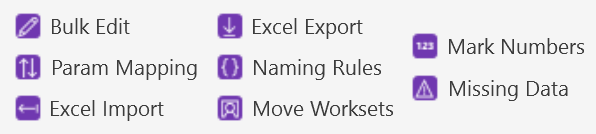
A useful order of work
- Start with Missing Data to see which values are empty, then fill the gaps with Bulk Edit, or with Excel Export followed by Excel Import.
- For an Excel round trip, export with Excel Export, edit in Excel without touching the UniqueId and Element Id cells, then bring the changes back with Excel Import.
- Run Naming Rules with Check only ticked to find values that break the rule, then run it again unticked to fix them. Use Mark Numbers before you tag elements.
- Run Workset Compliance Checker in the QA/QC panel to find elements on the wrong workset, then fix them with Move Worksets before Sync with Central. Both use the same rules.
Commands and practical limits
These instructions describe intended behaviour from the user guide. They are not evidence that every command has passed final-package testing in Revit. Save a copy of your model before commands that change it.
Missing Data Checker Read-only check
Finds elements where the parameters you need are still empty, so you can fill the gaps before you issue or hand over the model.
Ribbon button: Missing Data
- Click Missing Data and choose the scope: whole model, active view or current selection.
- Tick the categories to check.
- Type the required parameter names, one per line, and run the check.
- Double-click a row, or use Select & Zoom, to find the element in the model.
- Use Save Excel... or Save CSV... to keep or share the list.
Before you run it: It never changes the model, so you can run it as often as you like. Your options are remembered for next time.
Excel Export Exports files
Writes the parameters you tick, for the ticked categories, to an Excel .xlsx file so you can review, filter or edit them outside Revit.
Ribbon button: Excel Export
- Click Excel Export and tick the categories you want.
- Click Load parameters from the ticked categories, then tick the parameters to export.
- Choose one worksheet per category if you want each category on its own sheet.
- Choose a file name, save, and open the file in Excel. The header row is ready to filter.
Before you run it: Keep the UniqueId column if you plan to bring your edits back with Excel Import. Exporting never changes the model.
Bulk Parameter Editor Changes the model
Changes one parameter on many elements at once: set, clear, find and replace, add a prefix or suffix, copy another parameter, or build from a pattern.
Ribbon button: Bulk Edit
- Select elements first if you only want to change some, then click Bulk Edit.
- Choose the scope, tick the categories, click Load names and pick the parameter.
- Choose the operation and type the value in project units, for example 300 for 300 mm.
- Tick Only where the parameter is empty or Allow type parameters if you need them.
- Check the preview, untick any row you don't want, and confirm.
Before you run it: Tick All or nothing in the preview if the whole run should roll back when one item fails. One Ctrl+Z undoes the whole run.
Parameter Mapping Changes the model
Copies values from one parameter to another, or turns short codes into full names with a value map.
Ribbon button: Param Mapping
- Click Param Mapping, choose the scope and tick the categories.
- Add one row per rule: source parameter, target parameter and mode (Copy, Copy if target empty or Map values).
- For Map values, type the map, for example CHW=Chilled Water; HHW=Heating Hot Water; *=Other.
- Press Enter after editing a cell, before you click a button, so the value is saved.
- Check the preview, untick any row you don't want, and confirm.
Before you run it: Add *= to the map to give a default for any value not listed. Without it, unmatched values are skipped. Tick Allow type parameters as target for type parameters.
Excel Import Changes the model
Reads edited values from an .xlsx or .csv file, usually one made by Excel Export, and writes the changes back to the model.
Ribbon button: Excel Import
- Edit the Excel Export file and save it. Leave the UniqueId and Element Id cells as they are.
- Click Excel Import and choose the .xlsx or .csv file.
- When asked about type parameters, answer Yes to include them, or No to skip them.
- Check the preview, which shows only the cells that changed, and untick any row you don't want.
- Confirm, then read the results report.
Before you run it: Rows are matched by UniqueId or Element Id, so a file from another model won't find any elements. One Ctrl+Z undoes the whole run.
Naming Convention Tool Changes the model
Checks or applies a naming rule to a parameter such as Mark, Comments or Type Mark, using a pattern with automatic numbering.
Ribbon button: Naming Rules
- Click Naming Rules, choose the scope and tick the categories.
- Choose the parameter: Mark, Comments, Type Mark, or type any parameter name.
- Enter the pattern (default {Category}-{Level}-{Seq}) and set the {Seq} start, digits and step.
- Choose whether numbering restarts on each level and/or for each different prefix.
- Review the preview, untick any row you don't want, and confirm.
Before you run it: Tick Check only first to list the elements that don't match the rule without changing anything. Tick Only elements where the parameter is empty to keep filled values.
Mark Numbering Changes the model
Numbers elements and writes the result to Mark, using the pattern {SystemAbbr}-{Level}-{Seq} by default.
Ribbon button: Mark Numbers
- Click Mark Numbers, choose the scope and tick the categories, for example Air Terminals.
- Check the pattern. The default is {SystemAbbr}-{Level}-{Seq}.
- Set the {Seq} start and digits, for example start 1 and 3 digits.
- Review the preview and look for rows flagged "value used more than once".
- Untick any row you don't want and confirm.
Before you run it: Repeated values are flagged but not blocked, so check those rows before you confirm. Elements are numbered level by level, then top to bottom, then left to right.
Workset Organizer Changes the model
Moves elements across the whole model to the workset set for their category. It works on workshared models only.
Ribbon button: Move Worksets
- Open a workshared model and click Move Worksets.
- Check the category to workset rules. They are the same rules Workset Compliance Checker uses.
- Review the preview. Elements already on the right workset aren't listed.
- Untick any row you don't want, confirm, then read the results report.
Before you run it: Run it before Sync with Central so new elements land on the right worksets. Elements borrowed by another user are skipped and listed in the report.