
01 / Levels
Choose which floors need plans.
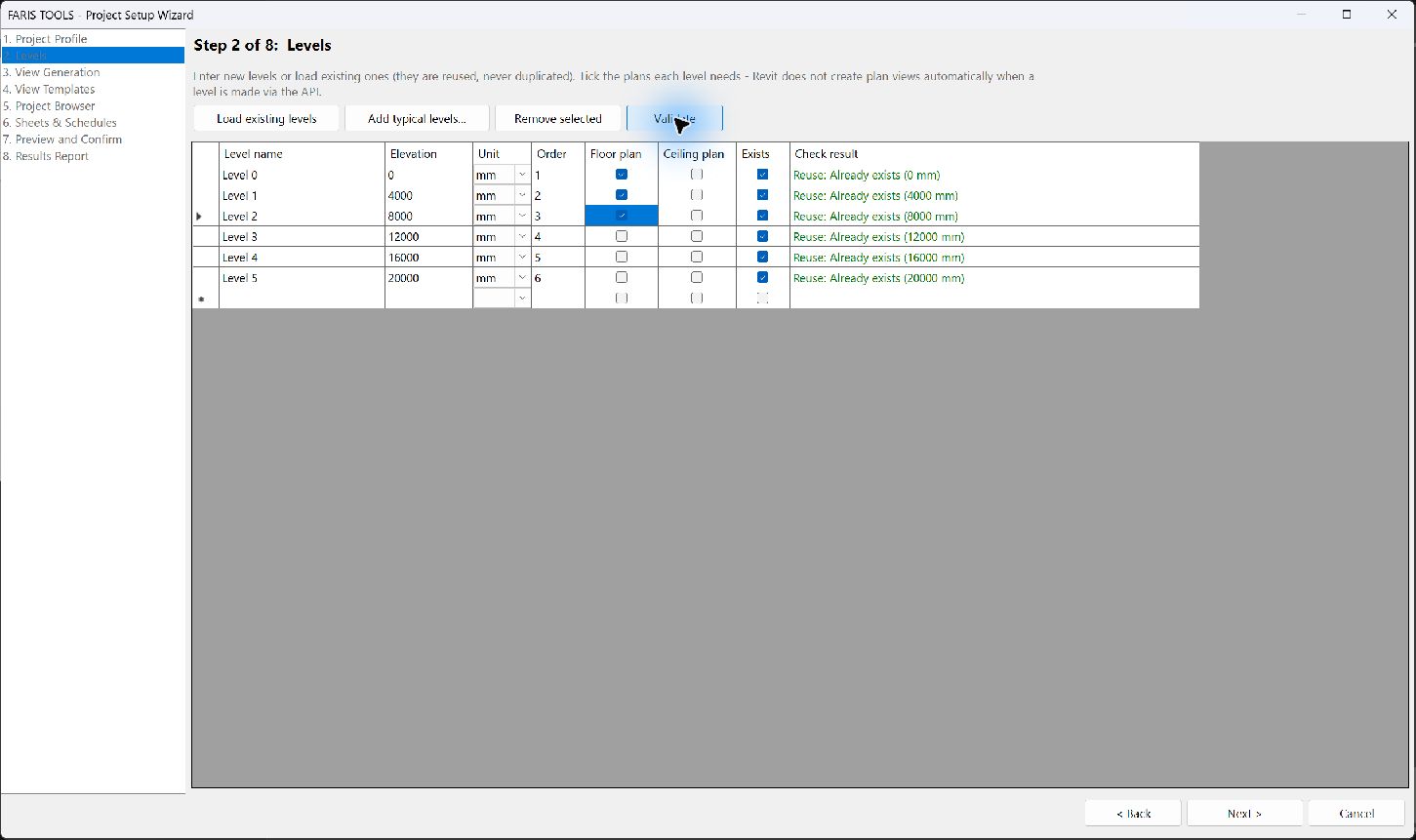
Load the existing levels and tick the floor plans you need. In this example, three levels are selected. Existing levels are reused.
Look for: the checked boxes under “Floor plan”.
FARIS Toolkit 1.0 / 12 commands
Use this panel at the start of a project to set up levels, views, templates, view names, sheets and schedules. The Project Setup Wizard does most of it in one run, and the other buttons each do one part or check the result.
Featured workflow / Project Setup Wizard
Choose your levels and naming rules, review the preview, then create the selected items together.
Each floor needs named plans and numbered sheets. Preparing them one by one means repeating the same decisions.
Select levels, choose view names and prepare a sheet list in the Wizard. Review what will be created or reused.
Execute the setup, read the report and inspect your views and sheets before continuing with the model.
Sheets still need views placed on them. Project Browser organisation requires manual setup. The interactive example is a simulation; the screenshots below come from Revit.
Inside Revit / At your own pace
Four captured stages of the real Wizard in Revit 2025.5, using a disposable test model. Read each step, then enlarge the screenshot to inspect the controls. These are screenshots, not a live recording.
01 / Levels
Load the existing levels and tick the floor plans you need. In this example, three levels are selected. Existing levels are reused.
Look for: the checked boxes under “Floor plan”.
02 / Views
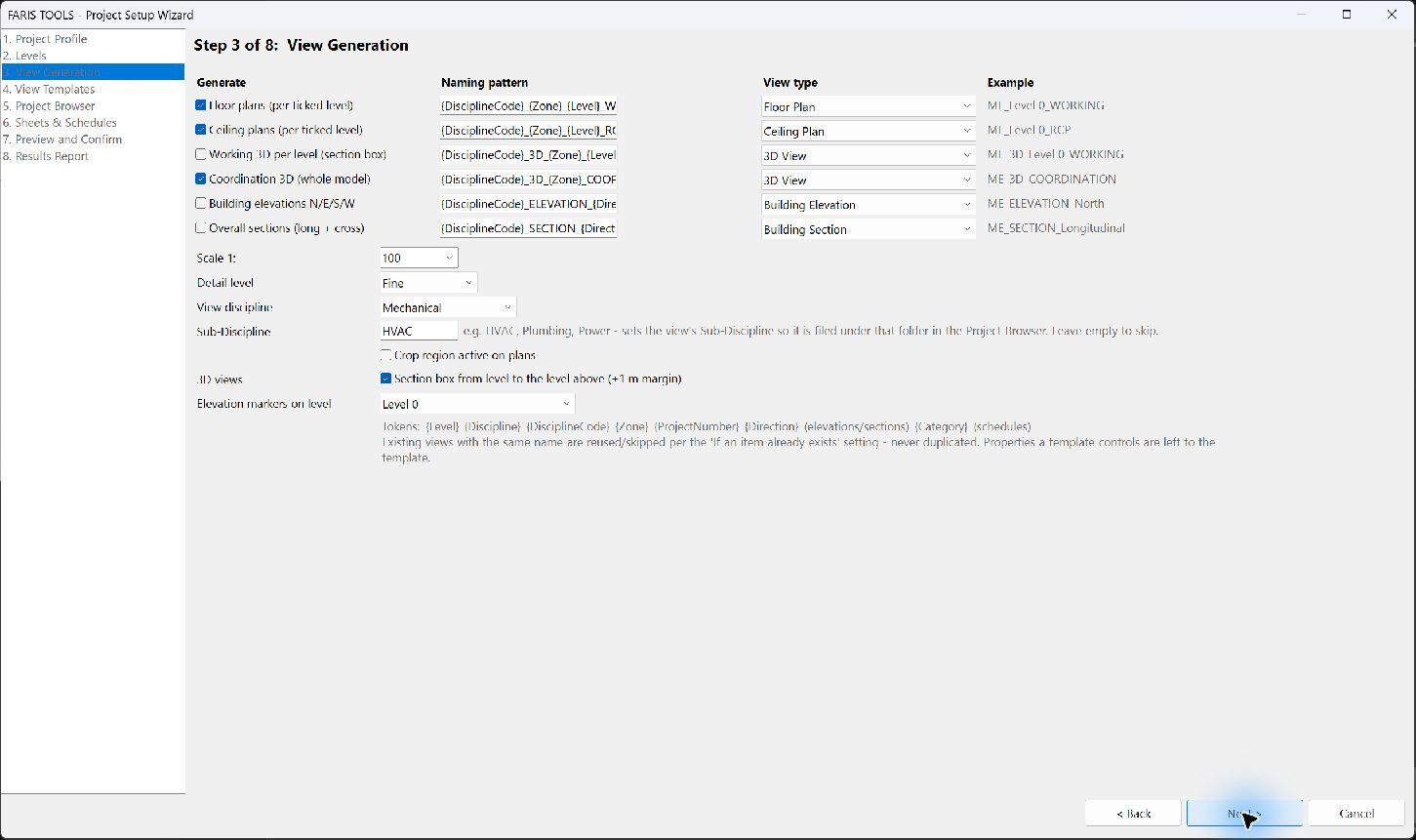
Choose the view types and naming patterns. The example column shows how each view will be named, so you can check the pattern before creating anything.
Look for: “Naming pattern” and the matching “Example” column.
03 / Sheets
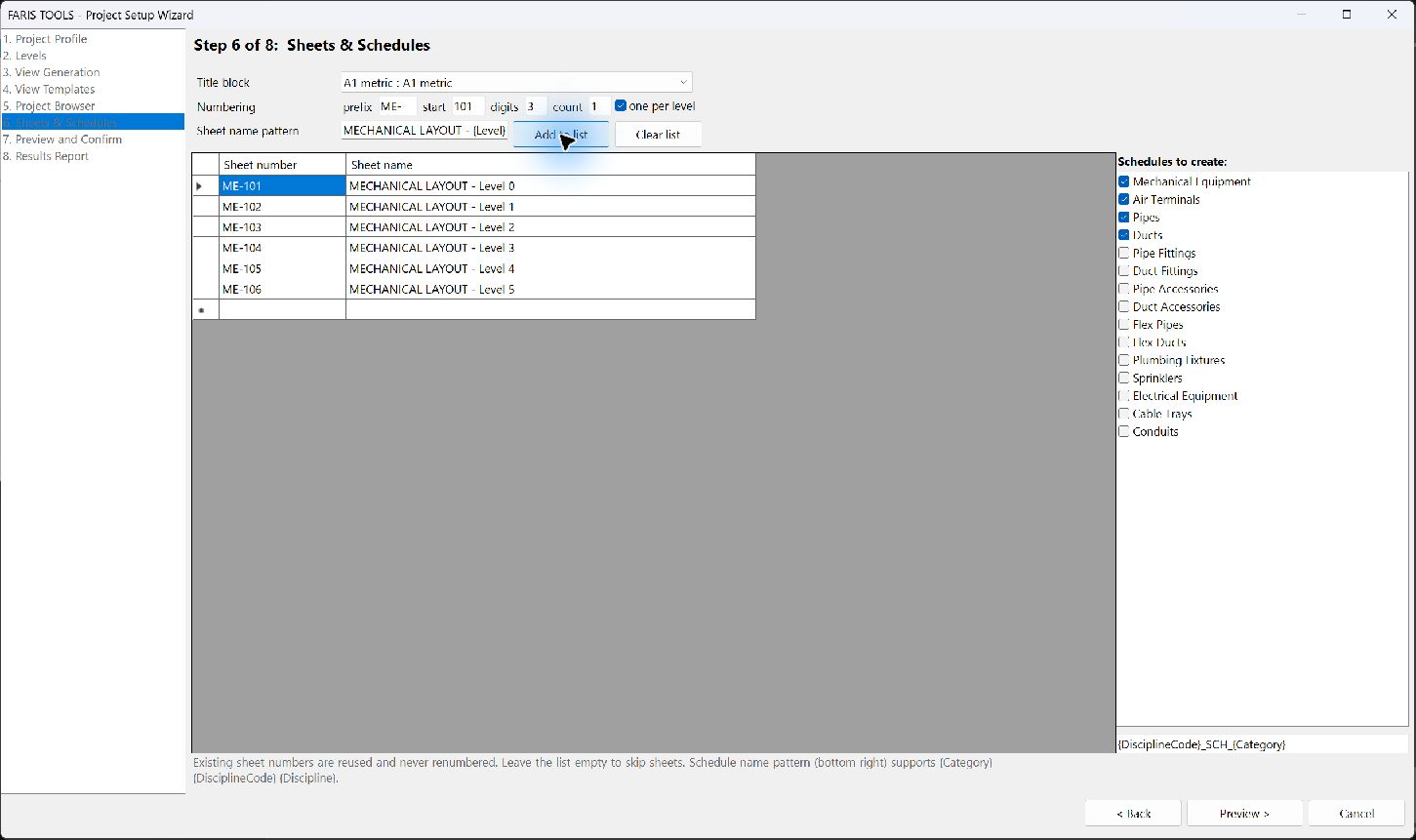
Choose a title block, a prefix and a starting number. This example lists six sheets, ME-101 to ME-106, with names based on the levels.
Look for: the sheet number and name columns. Existing numbers are reused, not renumbered.
04 / Preview
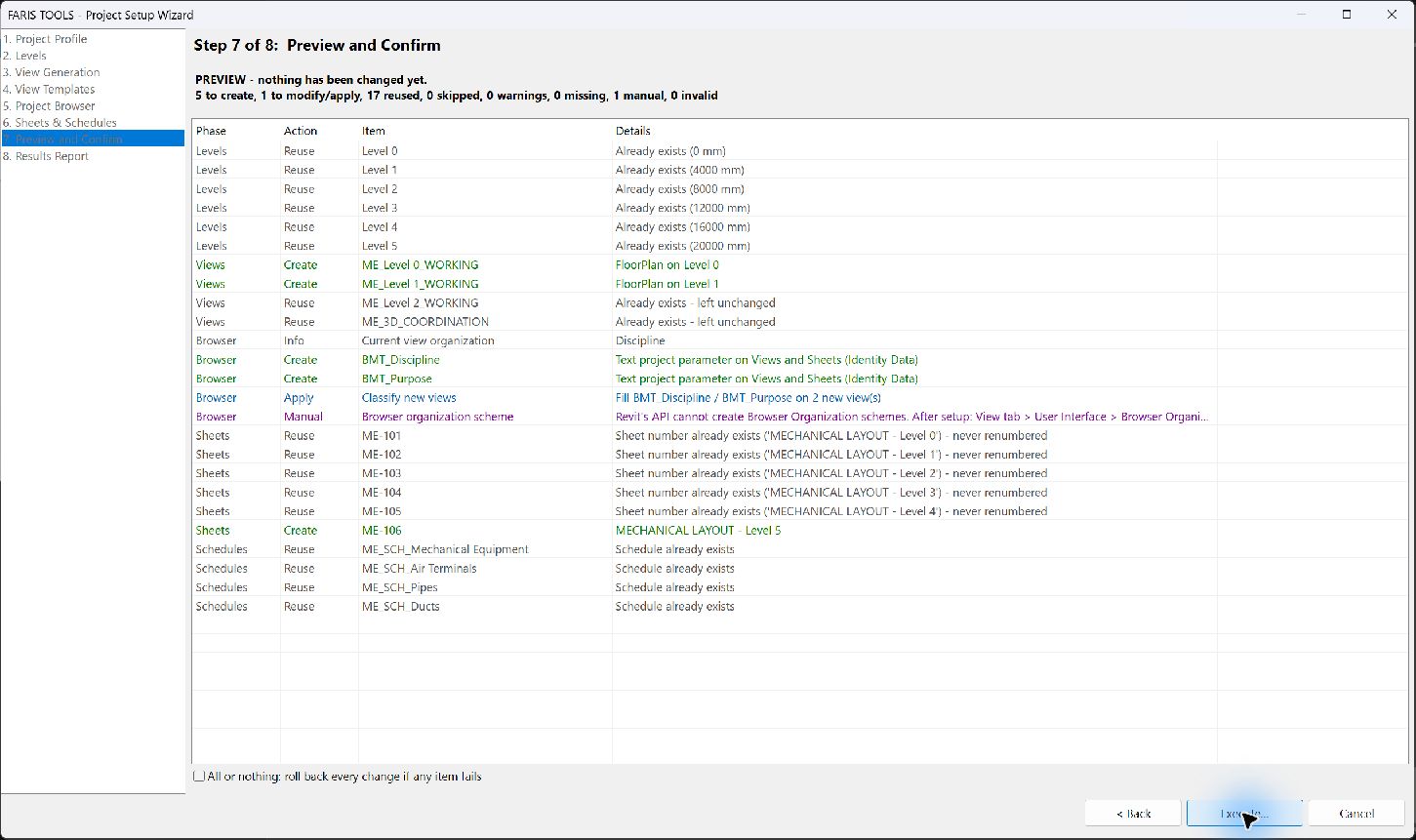
The preview separates items to create, reuse and handle manually. In this test, it listed five items to create and 17 to reuse. Nothing had changed at this stage.
Look for: the Action column and the manual Browser organisation row.

These instructions describe intended behaviour from the user guide. They are not evidence that every command has passed final-package testing in Revit. Save a copy of your model before commands that change it.
Sets up levels, views, view templates, Project Browser parameters, sheets and schedules in one guided run of eight steps.
Ribbon button: Project Setup Wizard
Before you run it: Nothing changes before step 7. Press Save as... on step 1 to keep your settings as a profile for the next project.
Adds new levels, with their floor and ceiling plans, without running the whole wizard.
Ribbon button: Levels
Before you run it: Plans are only made where you tick Floor plan / Ceiling plan, so tick them for every new level that needs plans.
Creates floor and ceiling plans for existing levels, with your naming pattern, view type, scale and detail level.
Ribbon button: Plan Views
Before you run it: Empty naming tokens are dropped, so ME_{Zone}_L01 becomes ME_L01 when Zone is empty. Re-runs reuse plans with the same name.
Creates one working 3D view per level, with a section box from that level to the one above, plus an optional coordination 3D view.
Ribbon button: 3D Views
Before you run it: These views let you work on the services one floor at a time. To give them a template, use Apply Templates afterwards.
Creates north, east, south and west elevations plus a long and a cross section through the model centre, and checks every level shows.
Ribbon button: Elev & Sections
Before you run it: The crop uses Revit's default, so run View Crop Assistant on the Views & Display panel afterwards to crop the new views.
Lists your view templates with their usage, flags unused ones, and makes new templates from a view or from a copy of a template.
Ribbon button: Template Builder
Before you run it: Your existing templates are never edited. Use Apply Templates next to put the new template on views.
Puts a view template on many existing views at once, after checking that it fits each view.
Ribbon button: Apply Templates
Before you run it: A template only fits views of the same kind, so a Floor Plan template on a 3D view is skipped. One Ctrl+Z undoes the whole run.
Renames many views at once with a pattern, find and replace, a prefix or suffix, or a change of case.
Ribbon button: View Naming
Before you run it: Run View Cleanup first to find copied names such as ... Copy 2, then tidy them here. A name that clashes with another view of the same type is not renamed.
Reports how your Project Browser is organised for views and sheets, and can add two parameters for sorting them by discipline and purpose.
Ribbon button: Browser Setup
Before you run it: Values are filled in only on views and sheets the toolkit creates. On existing ones, type the values yourself.
Creates numbered sheets with a title block, plus the standard schedules you tick.
Ribbon button: Sheet Setup
Before you run it: Existing sheet numbers are never renumbered, so a re-run reuses them. Then fill the sheets with Place Views on Sheets (Sheets drop-down, Documentation panel).
Checks the model against a profile (floor plans, view names, templates, title block, schedules and sheet numbers) without changing anything.
Ribbon button: Standards Audit
Before you run it: Run it before a milestone, then fix findings with the other Project Setup tools, for example View Naming for view names.
Gives a quick, read-only overview of the project's setup: levels and plans, views, templates, sheets, title blocks, schedules and worksets.
Ribbon button: Setup Summary
Before you run it: It shows whether the model is workshared or in the cloud. Check this before running tools that change the model, and test those on a copy first.