FARIS Toolkit 1.0 / 6 commands
Views & Display
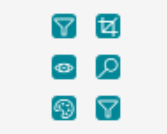
Use this panel to show, hide or colour MEP systems in many views at once, set view crops, and keep views and templates tidy. The buttons show icons only, so hover over each one to see its name.
A useful order of work
- Run MEP View Filter Builder first to set up all your system filters in one go, then use System Visibility Manager or Color by System on your views.
- Want your own colours? Set Line Color on your system types before you run Color by System.
- After Elevations & Sections on the Project Setup panel, run View Crop Assistant to replace Revit's default crops.
- To tidy up, run View Cleanup and View Template Audit, share the lists with Save Excel..., then fix items in Revit. View Naming Manager renames views in bulk.
Commands and practical limits
These instructions describe intended behaviour from the user guide. They are not evidence that every command has passed final-package testing in Revit. Save a copy of your model before commands that change it.
MEP View Filter Builder Changes the model
Creates one view filter for each piping or ductwork system type you tick, ready to show, hide or colour that system.
Ribbon button: View Filters
- Click MEP View Filter Builder on the Views & Display panel.
- Tick the system types that need a filter.
- Check the preview. Filters that already exist are reused, not changed.
- Untick rows you don't want, tick All or nothing if you like, then confirm.
Before you run it: It only creates the filters, named FT_P_ for piping and FT_D_ for ductwork. Use System Visibility Manager or Color by System to put them on views.
System Visibility Manager Changes the model
Shows or hides chosen piping and ductwork systems in many views at once.
Ribbon button: Show/Hide Systems
- Click System Visibility Manager, then tick the views and the system types.
- Choose Show or Hide. Tick ...and hide every other system to also hide the systems you didn't tick.
- If a view's template controls filters, tick change the template, or that view is skipped.
- Review the preview, untick rows you don't want, and confirm.
Before you run it: You don't need to run MEP View Filter Builder first, as missing filters are created for you. Changing a template affects every view that uses it.
Color by System Changes the model
Colours piping and ductwork systems in the chosen views, using each system type's Line Color or a distinct palette colour.
Ribbon button: Color by System
- Click Color by System, then tick the views and the system types.
- Tick Solid fill if surfaces and cut patterns should be filled as well as lines.
- If a view's template controls filters, tick change the template, or that view is skipped.
- Review the preview, confirm, and check the report for any fill pattern warning.
Before you run it: Set Line Color on your system types first to get your own colours. Solid fill needs a solid drafting fill pattern in the project.
View Crop Assistant Changes the model
Switches on and sets the crop region of many views at once, around MEP elements, everything, the model extents or a scope box.
Ribbon button: View Crop
- Click View Crop Assistant and tick the views.
- Choose Crop to: MEP elements in the view, Everything in the view, Model extents or Scope box.
- Enter the margin in mm, for example 1000 for 1 m around the elements.
- Review the preview, confirm, and read the results report.
Before you run it: Only the crop outline changes, not the view depth. Views that already have a scope box are skipped unless you choose Scope box.
View Template Audit Read-only check
A read-only report showing which templates are unused or have look-alike names, and which views use a template meant for another view type.
Ribbon button: Template Audit
- Click View Template Audit on the Views & Display panel.
- Set the options and run the check. They're remembered for next time.
- Read the report. Each finding is an orange Warning row.
- Use Select & Zoom to open a view, and Save Excel... or Save CSV... to share the list.
Before you run it: It never changes the model, so delete or rename templates yourself in Revit. Names that differ only by scale aren't flagged as duplicates.
View Cleanup (find only) Read-only check
Finds views not on any sheet, views with default or copied names, empty sheets and, optionally, unplaced schedules. Nothing is deleted.
Ribbon button: View Cleanup
- Click View Cleanup on the Views & Display panel.
- Choose whether to include schedules not on any sheet, then run the check.
- Read the report. Each finding is an orange Warning row.
- Use Select & Zoom to open a view or sheet from the list.
- Delete or rename the items yourself in Revit. View Naming Manager can rename views in bulk.
Before you run it: Run it before an issue or archive, and use Save Excel... to share the list for review before anyone deletes views.